




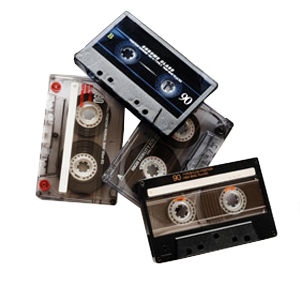





Your camcorder tape dates may be preserved after digitization, but the result depends on how the camera recorded them and how the video transfer service creates the digital file. A date visible within the picture usually carries over automatically. A MiniDV date code stored separately from the video may require a different workflow.
Before starting a camcorder tape-to-digital project, decide whether you want the date visible during playback, retained as separate information, or used to organize the finished files.
Visible Dates Usually Transfer With The Picture
Some camcorders recorded the date directly into the image. This type of timestamp becomes part of every affected frame, much like a title added during editing. A transfer captures it along with the rest of the picture.
You can’t hide or turn off a date once the camera permanently recorded it into the image. Removing it later may require cropping, covering, or reconstructing part of the frame. Those changes can affect picture quality.
- Date Appears On Every Playback Device
- Text Remains Fixed In The Image
- Transfer Preserves It Automatically
- Viewer Can’t Turn It Off
MiniDV Date Codes May Remain Separate
MiniDV can store the recording date and time as data associated with the video rather than placing it visibly over the image. A compatible camcorder may display this MiniDV date code during playback, even though the text isn’t part of the picture itself.
A standard transfer to MP4 or DVD may preserve the video without carrying all that separate tape data into the finished format. The file’s creation date also reflects when someone created or copied the digital file, not necessarily when the original footage was recorded.
Video8 Date Stamps Depend On The Recording Method
Video8 and Hi8 are analog formats, so their date information doesn’t always behave like MiniDV metadata. A Video8 date stamp recorded into the picture will appear in the transfer. A date generated only by the original camcorder during playback may not.
The distinction can be difficult to identify without compatible equipment. If the date appears when you play the tape through the original camera, turn the display off and check the image again. A date that disappears may come from the camera’s display system rather than the recorded picture.
Don’t repeatedly test a fragile tape if the camcorder struggles to load or play it. Aging equipment can place unnecessary strain on old recordings.
Digital File Dates Aren’t The Recording Dates
After camcorder tape conversion, your computer assigns dates to the resulting files. These may show when the service created the file, copied it to a drive, or downloaded it to your computer.
They shouldn’t automatically serve as the dates of the original events. Moving files between devices or restoring them from a backup can change certain system dates again.
You can preserve video metadata more reliably by documenting the known recording date and adding it to the filename or catalog. This approach keeps the information easy to find without placing text over the footage.
- 1998-07-04_Family-Picnic.mp4
- 2001-12-25_Christmas-Morning.mp4
- 2004-06_School-Graduation.mp4
- Date-Unknown_Reel-01.mp4
Timestamps Can Be Added After Transfer
If the original date remains available separately, you may choose to add a visible timestamp during editing. The text can appear briefly at the beginning of a clip instead of remaining on-screen for the entire recording, which is something to consider for celebration videos where the date would be important but might interfere with viewing the full video.
When researching how to time stamp old footage, consider how you plan to watch it. A permanent overlay may help identify short clips, but it can distract from longer family recordings. Title cards, chapter labels, and descriptive filenames provide less intrusive alternatives.
Tape Format Affects What Can Be Recovered
Small camcorder tapes include several formats that look similar but store information differently. MiniDV and Digital8 record digital video, while Video8 and Hi8 use analog signals. VHS-C, MicroMV, and other compact formats require their own compatible playback equipment.
A generic adapter or converter won’t read every format. Even when two cassettes have similar dimensions, their recording systems may differ. Identifying the format helps determine whether separate date information may exist and how the tape should be transferred.
Labeling Can Fill Gaps In Missing Dates
Many old video camera tapes have incomplete labels, incorrect camera clocks, or no usable date information. A timestamp isn’t necessarily accurate simply because the camcorder recorded it. Batteries could fail, clocks could reset, and users could enter the wrong year.
Family knowledge can help place undated footage in context. Clothing, birthdays, homes, vehicles, and seasonal events may narrow the timeframe. Record uncertain dates as approximate rather than presenting them as exact.
Organize the information before sending old camcorder tapes to DVD or digital storage. Number each cassette and keep a matching inventory so your labels stay connected to the correct footage.
Ask About Dates Before The Transfer
Don’t assume every transfer method will preserve date codes or other information stored outside the visible image. Let us know that recording dates matter when you submit your tapes so we can inspect the format and explain what the finished files can retain.
DVD Your Memories transfers MiniDV, Video8, Hi8, Digital8, VHS-C, MicroMV, and other video formats. Before dropping off your tapes in Southern California or sending them through our mail-in service, note which dates you want to retain and how you want them presented. We can review those preferences with you before beginning the transfer.