



Transferring U-Matic tapes to digital in Southern California starts with identifying your recordings, checking their condition, and deciding how you’ll use the finished files. You don’t need to own a working tape deck to recover an interview, school production, or family recording.
You do need playback equipment suited to the format, along with a transfer process that captures both picture and sound.
Identify Your U-Matic Tapes Before Transfer
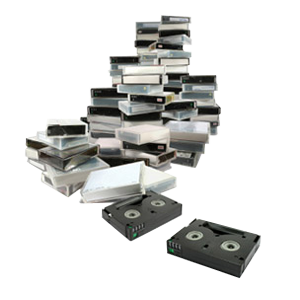
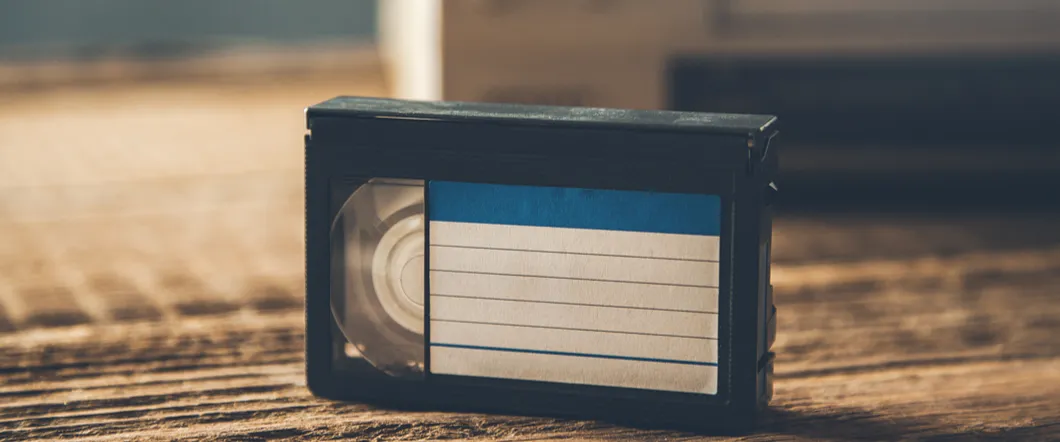
U-Matic is an analog videocassette format developed by Sony that uses 3/4-inch magnetic tape. You may find it among older television recordings, educational programs, corporate videos, or local history collections.
U-Matic tapes come in two cassette sizes: standard and a smaller version called U-Matic S. Check the cassette or its case for “U-Matic” markings to help identify the format.
Why U-Matic Requires Specialized Playback
A VHS player won’t play a U-Matic cassette. To transfer a 3/4-inch video tape, you need a compatible U-Matic deck, an analog-to-digital capture setup, and software to record the incoming video and audio.
Equipment condition matters as much as compatibility. An old machine that powers on may still have mechanical or playback problems. The National Archives advises against testing valuable recordings on equipment in questionable condition because it risks damaging the tapes.
Professional video transfer removes the need to assemble and troubleshoot that setup yourself.
Check Tape Condition Without Opening The Cassette
Before arranging your transfer, look at the cassette exterior and any tape visible through its windows. Keep the shell closed and avoid touching or pulling the magnetic tape.
U-Matic recordings are vulnerable to mold, physical damage, and binder deterioration that holds the recording layer together.
- Cracked or broken cassette shells.
- Visible fuzzy growth or unusual residue.
- Loose tape visible inside the cassette.
- Previous playback problems, including squealing or repeated stopping.
Organize Your Recordings Before Digitization
A little preparation makes a collection easier to navigate after transfer. Give each cassette a simple identifier, then create a matching list of titles and notes. If the label says “City Interview 1984,” preserve that wording rather than replacing it with a guess.
- A unique tape number that matches your inventory.
- The title or description written on the original label.
- Any known recording date, location, or people featured.
- Your preferred transfer order and any important deadlines.
- Instructions about keeping footage complete or requesting edits.
How The U-Matic Transfer Process Works
To move U-Matic to digital, the tape plays through a suitable deck while capture equipment converts its analog signals into a digital recording. The system captures picture and audio together as the tape runs. This is playback and recording, rather than copying files from a storage device.
DVD Your Memories uses a broadcast-quality tape deck for U-Matic transfers. The result still depends on what remains on the original recording.
Digitization, like transferring U-Matic to DVD, makes footage accessible without repeated tape playback, but it doesn’t automatically restore missing detail, damaged sections, or sound that was never recorded clearly.
Choose AVI Files For Your Editing Plans
If you’re looking to transfer U-Matic to AVI, our hard-drive option uses NTSC DV AVI files and requires about 13 GB of storage per hour of video. We recommend digital files on an external drive when you plan to edit your footage.
AVI identifies the file container; DV identifies the video encoding inside it. These are compressed video files, so they aren’t uncompressed preservation masters.
Match Your Delivery Option To Your Needs
Think about what you’ll do with the recording first. Editing a documentary, watching an old performance, and sharing a short interview involve different needs. Confirm the file format and delivery method together, since putting a file on a USB drive doesn’t guarantee that every television or device will play it.
Review & Back Up Your Finished Files
Once you receive your digital recordings, check that each file opens and matches your inventory. Sample the beginning, middle, and end by listening to the audio and watching the picture. For especially important footage, review the full recording.
Create a second copy on a separate storage device or suitable cloud service. Keep your inventory and label photographs with the files so the recordings retain their context.
Digital preservation requires ongoing care, including checking your backups and moving files to replacement storage when needed.
Bring Your U-Matic Recordings Back Into Use
Contact DVD Your Memories with your tape count, label photos, and footage plans to arrange your U-Matic transfer. We have Southern California stores for drop-offs, and we also offer mail-in service if shipping works better for you.